The plan grid works like a spreadsheet. Accounts run down the left, months across the top, and every cell accepts a number or a formula that starts with =.
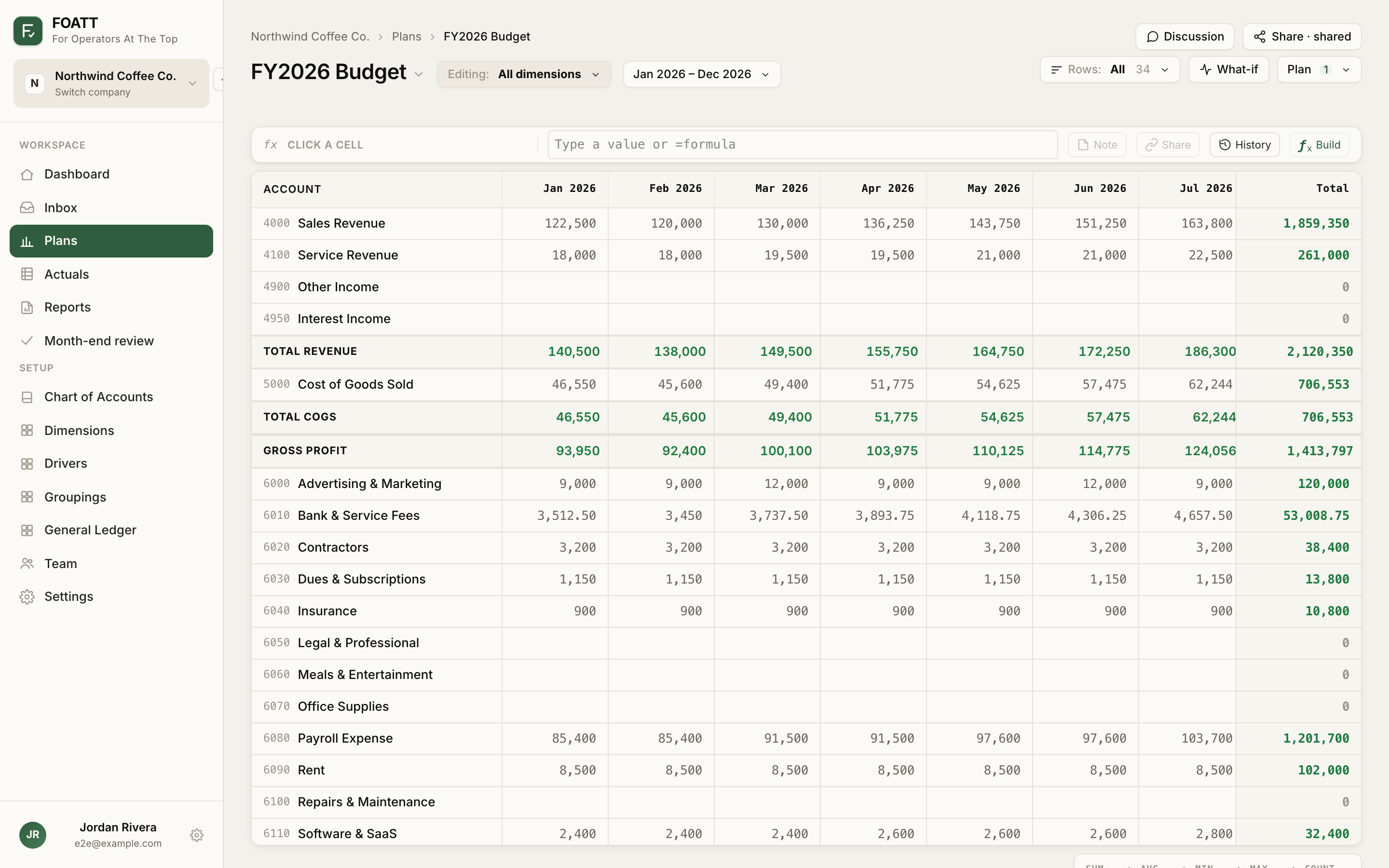
Anatomy of the page

- Title menu — click the plan name to switch plans, create or edit a plan, fork, or merge.
- Editing: scope — which dimension you are editing. See Plan by dimension.
- Date range — the visible months, plus quarter and year subtotals and the actuals cutoff.
- Rows: — a saved view that hides rows you do not need. See Saved views.
- What-if — sensitivity scenarios. See What-if scenarios.
- Plan menu — lock, export, import, and the fork tree.
- Formula bar — shows the active cell's address and raw value, with Note, Share, History, and Build buttons to its right.
The Drivers strip below the grid holds assumption rows like headcount. See Drivers.
Bold rows such as Total Revenue and Gross Profit are calculated groupings and are read-only. Row totals appear in the right-hand Total column.
Entering values
Click a cell and start typing. The new value replaces the old one and saves when you press Enter or Tab or click elsewhere. Numbers are flexible:
| You type | Stored as |
|---|---|
12,500 or $12,500 | 12,500 |
(1,200) or -1200 | −1,200 |
.5 | 0.50 |
- | 0 |
12% | 12 (on a percent-format row) |
Anything the grid cannot read shows an error in the cell tooltip: couldn't read '…' as a number. Currency cells show negatives in parentheses.
Selecting and moving
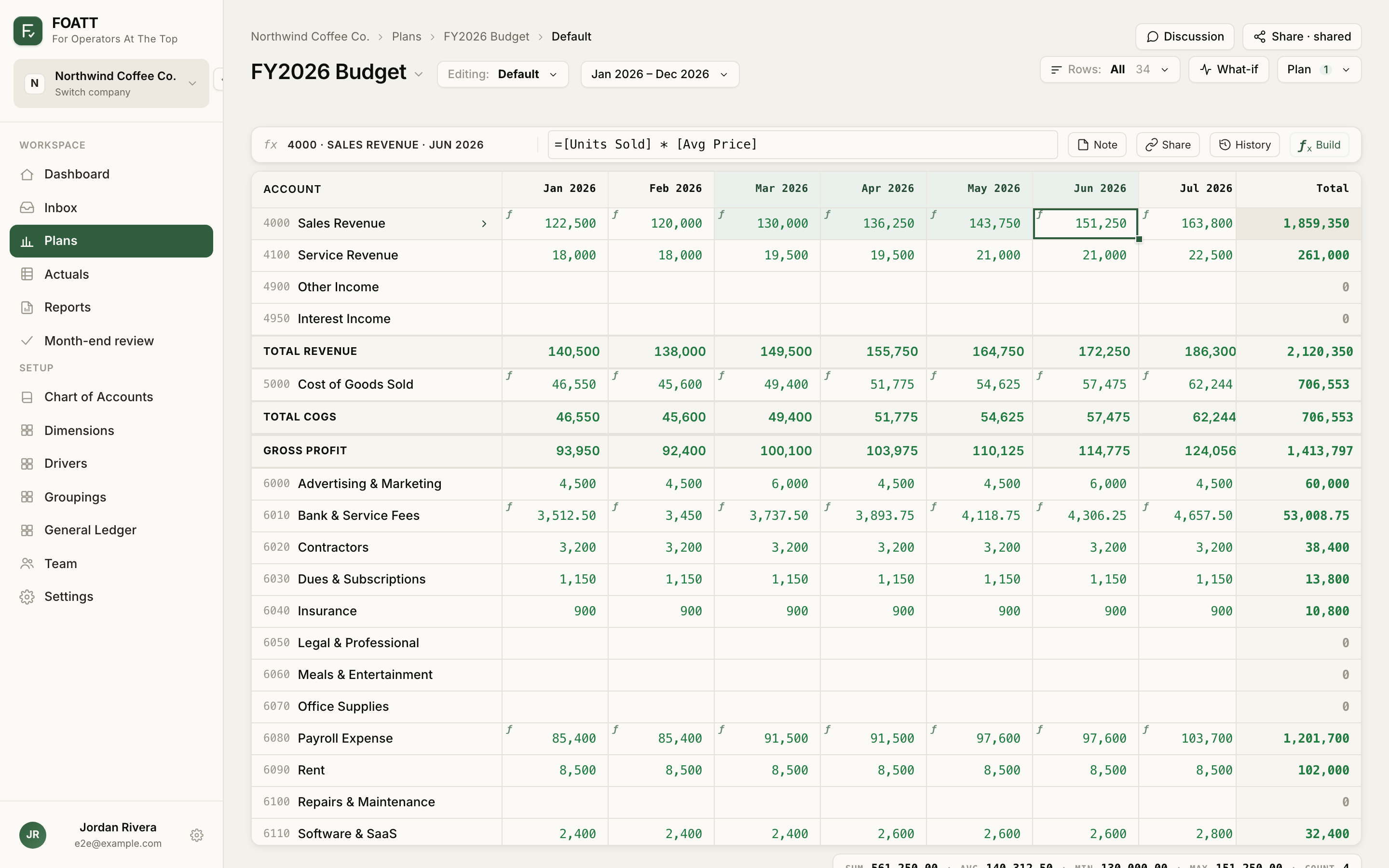
Click to select a cell; drag or Shift-click to select a range. A stats bar at the bottom shows sum, average, min, max, and count for any selection of two or more cells. Click a month header to select the whole column.
| Key | Action |
|---|---|
| Arrow keys | Move the active cell |
| Shift + Arrow | Extend the selection |
| Cmd/Ctrl + Arrow | Jump to the edge of the data |
| Tab / Shift + Tab | Move right / left |
| Enter or F2 | Edit the cell (formula cells open the builder) |
| Escape | Cancel editing, or collapse the selection |
| Home / End | First / last column in the row |
| Shift + Space | Select the whole row |
| Ctrl + Space | Select the whole column |
| Cmd/Ctrl + A | Select the whole grid |
| Delete or Backspace | Clear the selected cells |
| Cmd/Ctrl + Z / Cmd/Ctrl + Shift + Z | Undo / redo |
While editing, Enter commits and moves down, Tab commits and moves right, and Escape reverts.
Copy, paste, fill, and clear
| Key | Action |
|---|---|
| Cmd/Ctrl + C / X / V | Copy / cut / paste |
| Cmd/Ctrl + D | Fill down from the top of the selection |
| Cmd/Ctrl + R | Fill right from the left of the selection |
| Cmd/Ctrl + Enter | Fill the whole selection with the active cell's value |
Paste accepts tab-separated data straight from Excel or Google Sheets, anchored at the active cell. Pasting a single value onto a larger selection fills every cell in it. Formulas survive copy and paste inside the app; pasting into Excel gives you the displayed numbers. Read-only cells in the destination are skipped.
Drag the small square at the bottom-right corner of a selection to fill along one axis.
The right-click menu
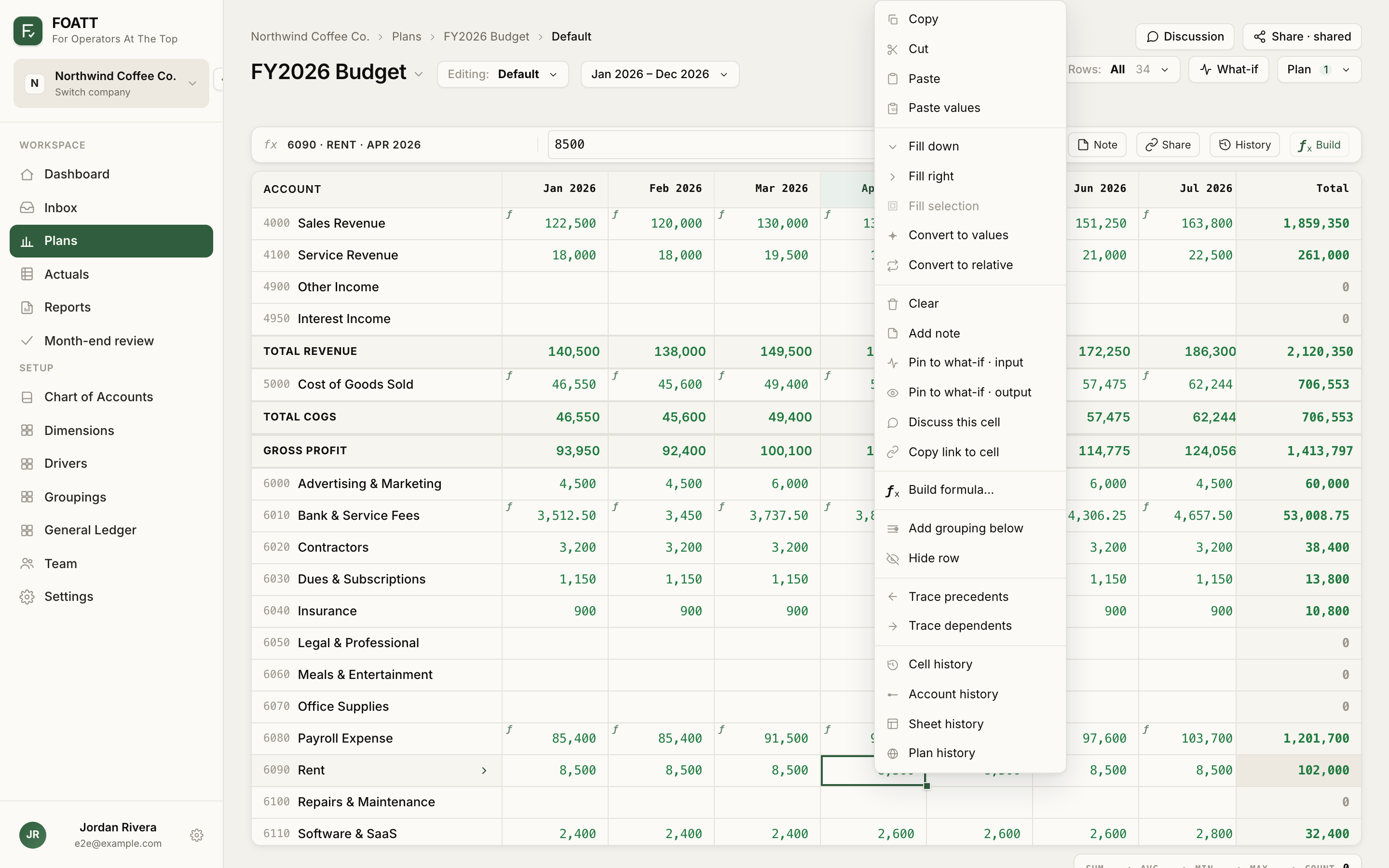
Right-click any cell for the full set of actions: copy, cut, paste, and Paste values; Fill down, Fill right, and Fill selection; Convert to values (replace formulas with their results) and Convert to relative (rewrite fixed months like Feb as offsets like [M-1]); Clear; Add note; what-if pins; Discuss this cell; Copy link to cell; Build formula…; Add grouping below; Hide row; trace precedents and dependents; and the four history scopes.
Items that would edit the plan disappear on read-only cells and locked plans. Hold Shift while right-clicking to get the browser's native menu instead.
Changing what you see
Open the date range dropdown (the button showing the first and last visible month) to:
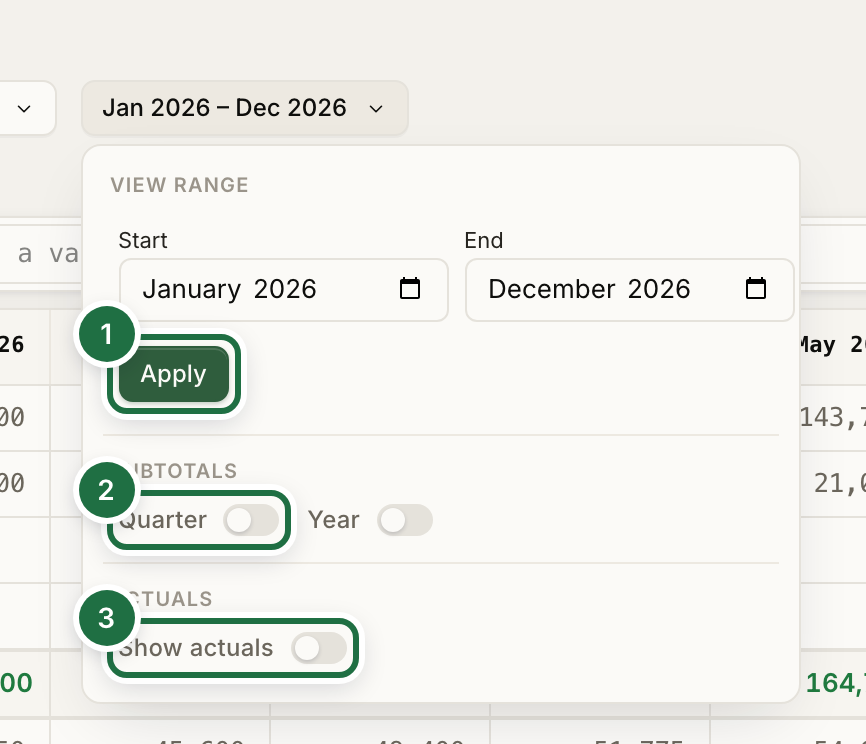
- Set a View range narrower or wider than the plan window and click Apply. You can enter values for months outside the plan's default window this way.
- Turn on Quarter and Year subtotal columns.
- Show actuals up to a cutoff month. See Blend actuals into a plan.
Notes and links
Select a cell and click Note in the formula bar to attach a comment that shows on hover for anyone viewing the plan. Share copies a link that opens the plan with that cell selected.