Actuals are the real numbers from your general ledger. On the plan grid you can replace planned months with actuals up to a cutoff, so the row totals reflect the year as it is actually unfolding.
Show actuals on the grid
- Open the date range dropdown at the top of the grid.
- Under Actuals, switch on Show actuals.
- Choose the cutoff in Through:. The default is the latest month with posted actuals; None yet turns the overlay off.
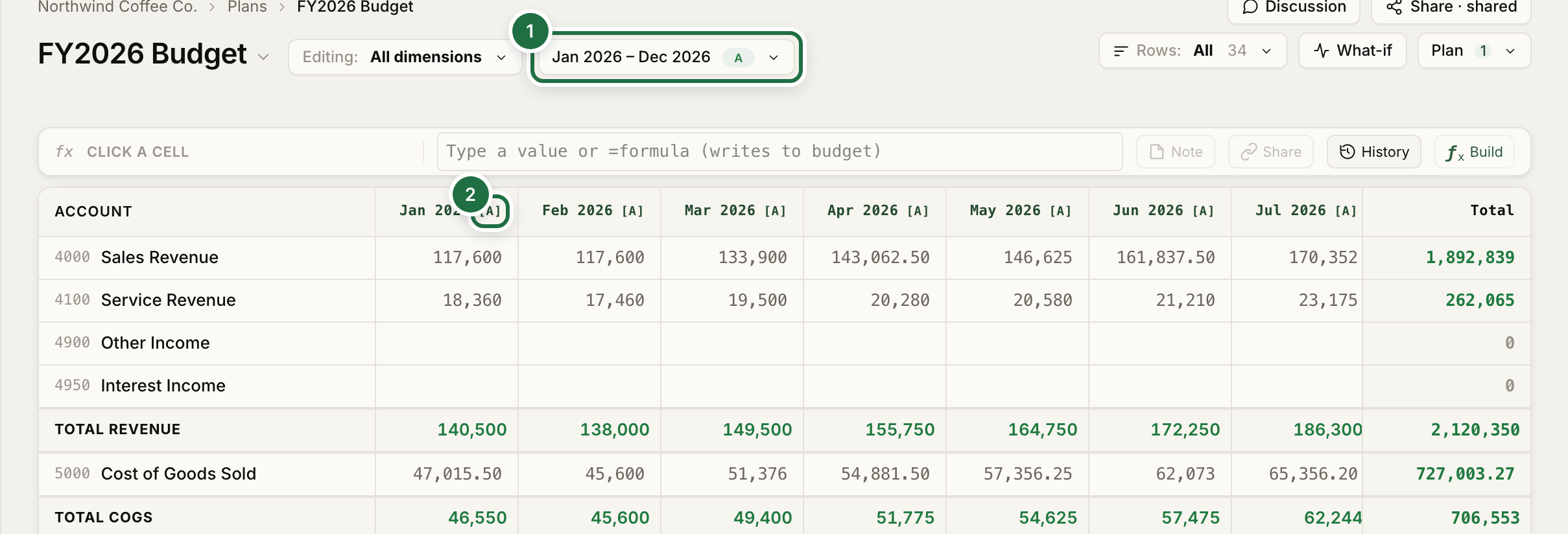
The date range button shows an A pill while the overlay is on (1). Months up to the cutoff turn read-only and carry an [A] tag in the header (2). Months after the cutoff stay editable, and row totals use the blend.
Where actuals come from
Actuals live on the Actuals page in the sidebar, independent of any plan, so every plan reads the same numbers.
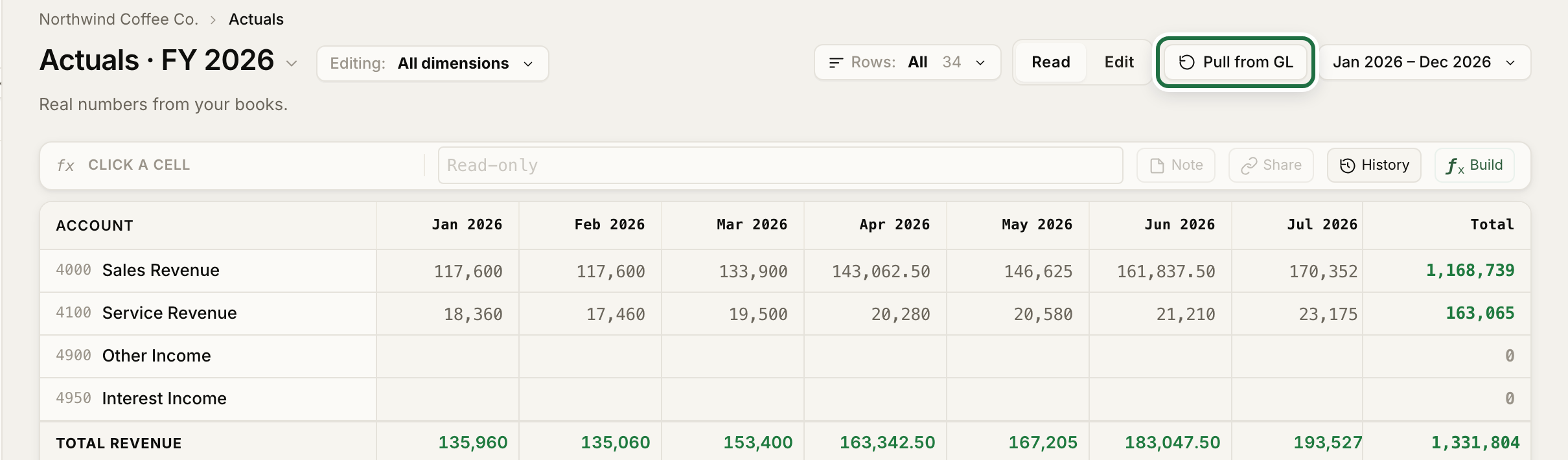
- Pull from GL (highlighted above) aggregates the general ledger entries you have imported into monthly actuals per account. Manual edits are preserved.
- If QuickBooks or NetSuite is connected, Sync from QuickBooks or Sync from NetSuite pulls directly from the accounting system.
- You can also type or paste actuals into cells on the Actuals grid. Manually entered cells show a small M badge.
Right-click an actuals cell and choose View GL transactions to see the entries behind it.
Use actuals in formulas
ACTUAL() reads posted actuals from inside a plan formula, and a relative offset that lands before the plan window falls back to actuals automatically:
=ACTUAL([M-12]) * 1.08        8% over the same month last year
=ACTUAL(Revenue!Q1)           actual Q1 revenue
=[M-1] * 1.02                 in January, reads December's actual
Compare plan and actual side by side
The plan grid shows one number per cell. For budget, actual, and variance columns next to each other, build a report: see Series and variance. The Month-end review page walks through variances account by account.