What-if is a sandbox next to the grid. You pin a few input cells, scale them with sliders, and watch pinned output cells move. Nothing in the plan changes until you choose to promote a scenario.
Pin inputs and outputs
Click What-if at the top right of the grid to open the drawer.
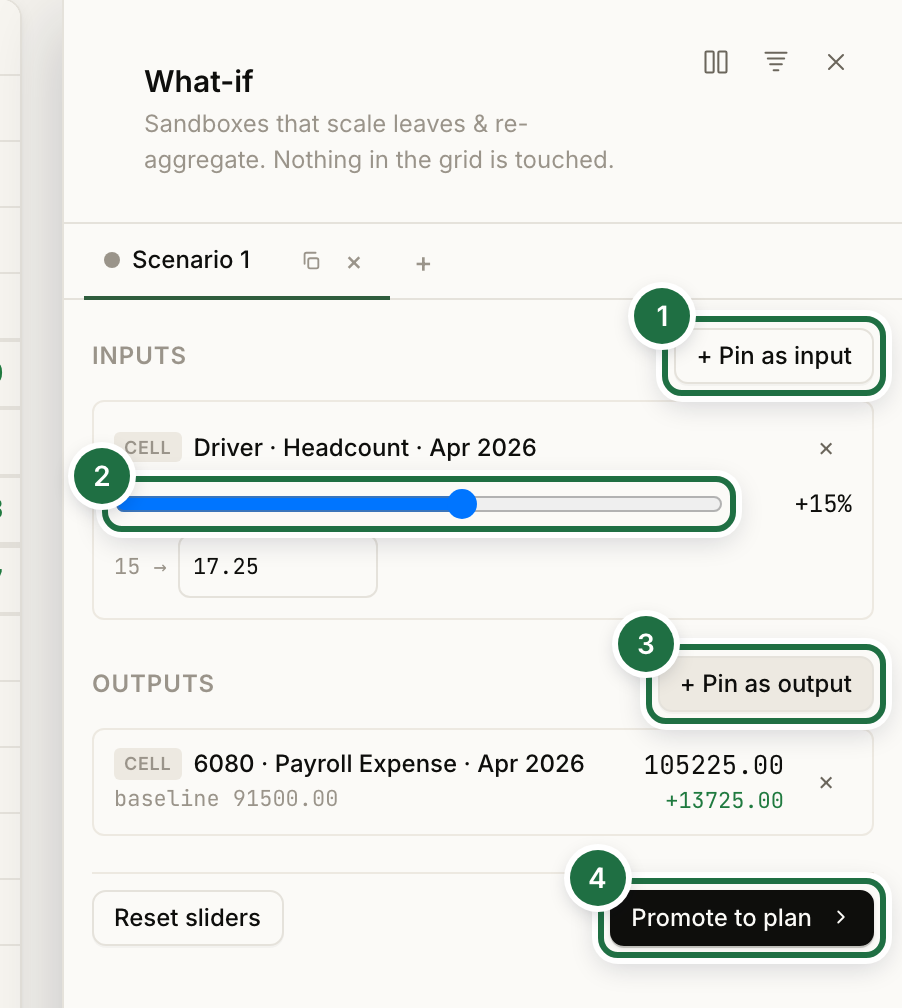
- Select a cell — a driver value, an account cell, or even a grouping or subtotal — and click + Pin as input. Right-click → Pin to what-if · input does the same in one step.
- Drag the slider from −100% to +100%, or type an absolute target in the field below it and the percentage is back-computed.
- Select the cell you want to watch and click + Pin as output. Outputs show the baseline, the previewed value, and the delta in green or red.
- When a scenario is worth keeping, Promote to plan turns it into a new plan (see below).
Empty cells cannot be pinned as inputs, because there is no baseline to scale.
Scenarios
Scenarios are tabs along the top of the drawer. Click + to add one, the duplicate icon to fork the current one, or × to delete it. Pins and slider positions save automatically and persist between visits.
- Compare (the side-by-side icon) shows every scenario's inputs and outputs in one matrix.
- Tornado (the bars icon) sweeps each input by ±N% against a chosen output and ranks the inputs by impact, so you can see which assumptions matter most.
Reset sliders returns every input in the current scenario to 0%.
Promote a scenario to a plan
When a scenario is worth keeping, click Promote to plan. Enter a Plan name (prefilled as Scenario name (committed)) and confirm. The app forks the current plan, writes the scenario's overridden inputs in as literal values, and recalculates every dependent formula. The new plan appears in the Plans created from these scenarios list and in the Plan menu's fork tree.
What-if is hidden while a plan is locked.