A saved view is a display filter for the grid. It hides rows without affecting any numbers: hidden rows still feed groupings, formulas, and reports.
Hide rows for this session
Right-click a row and choose Hide row. A banner above the grid reports how many rows are hidden and offers Save as new view or Reset. Session hides disappear when you reload the page.
The Rows dropdown
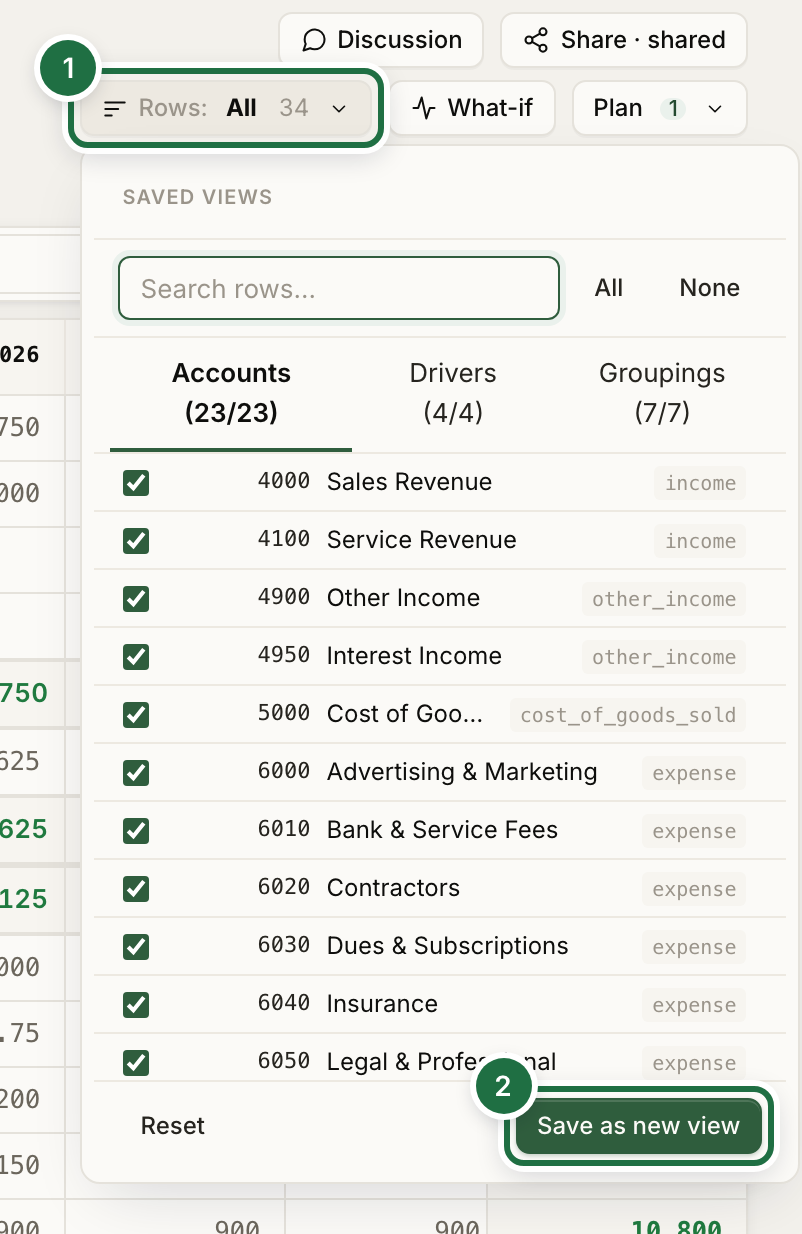
Click Rows: (1) at the top right of the grid. The dropdown lists All rows plus your saved views under My views, Shared with me, and Public. Below that is a live editor with tabs for Accounts, Drivers, and Groupings: search, tick and untick rows, or use All and None for the current tab. The counter on the button shows how many rows are visible.
Save a view
- Set up the rows you want from the Rows dropdown or by hiding rows.
- Click Save as new view (2).
- Enter a Name such as
Exec summaryorMarketing team. - Choose a Scope: Plan, Actuals, or Both, depending on which grid the view should apply to.
- Choose Visibility: Private — only me, Public — everyone, or Shared — pick users.
- Click Save.
Click the star next to any view to make it your default for this company. The URL parameter view_id=all opens a plan with every row visible, ignoring your default.
Manage views
Edit view in the dropdown reopens the modal for the active view. Owners can delete views from the modal or from the Saved views management page, which lists name, scope, visibility, and owner for every view in the company.