Groupings are calculated rows that appear in bold on the plan and actuals grids. Every company starts with the standard income-statement subtotals, and you can add your own.
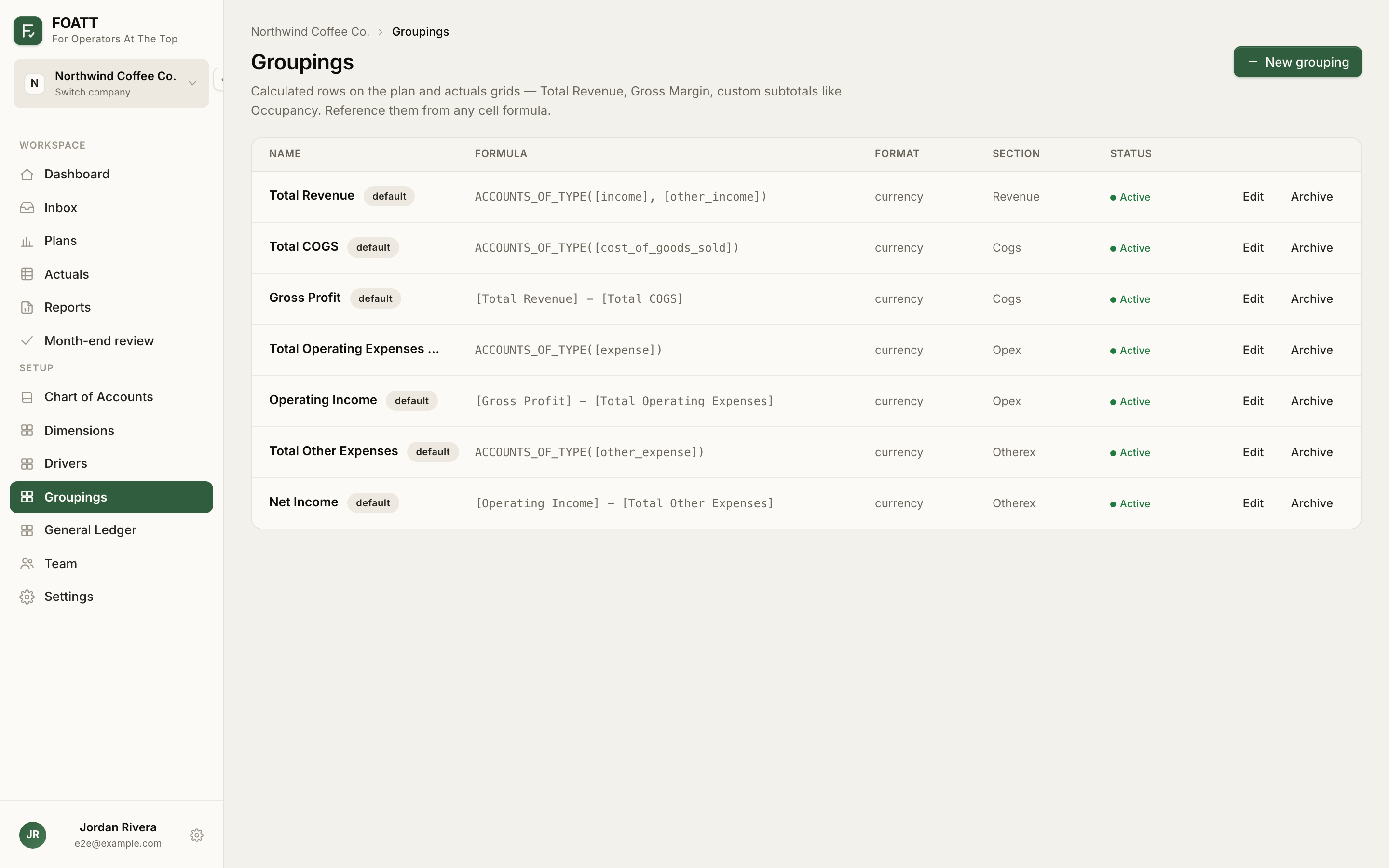
Default groupings
| Row | Formula |
|---|---|
| Total Revenue | All income and other-income accounts |
| Total COGS | All cost-of-goods-sold accounts |
| Gross Profit | [Total Revenue] - [Total COGS] |
| Total Operating Expenses | All expense accounts |
| Operating Income | [Gross Profit] - [Total Operating Expenses] |
| Total Other Expenses | All other-expense accounts |
| Net Income | [Operating Income] - [Total Other Expenses] |
These are built from account types, so a new account of the right type joins the subtotal automatically. Defaults can be archived and re-enabled from the Groupings page but never deleted.
Add a grouping from the grid
- Right-click any row and choose Add grouping below.
- Give it a Name. You reference it in formulas as
[Name]. - Choose a Format: Currency, Percent, or Number.
- Pick one of three modes:
- Sum of accounts — tick the accounts and drivers to add together. - All accounts of type — sum every account of one or more types; new accounts of that type are included automatically. - Calculation — write a free-form formula. Type [ to autocomplete a name, or click a chip to insert it.
- Check the Live preview, then click Create.
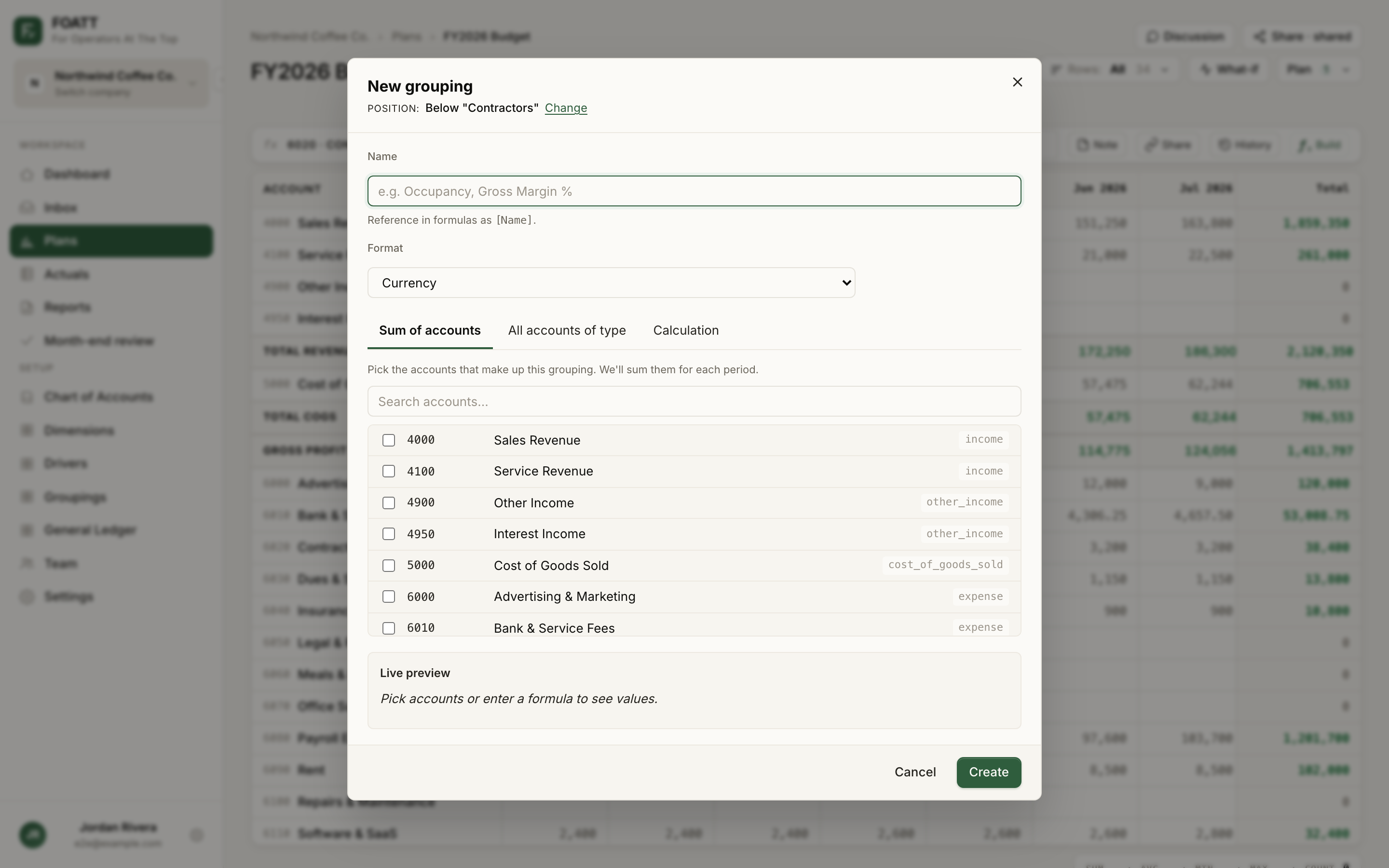
The grouping is anchored below the row you right-clicked. Click Change next to Position to anchor it elsewhere, or leave it unanchored to place it at the end of the grid.
Examples
[Gross Profit] / [Total Revenue]          gross margin, format Percent
6090! + 6150!                             occupancy cost, format Currency
[Total Operating Expenses] / [Headcount]  opex per head
Editing and managing
Click a grouping's name in the grid to edit it. The Groupings page under Setup lists everything with its formula, section, and status, and lets you set the section and sort order for groupings without an anchor.
Names must be unique across accounts, drivers, and groupings, and a grouping cannot reference itself. Grouping rows are read-only in the grid; hidden rows still feed the groupings that reference them.