Who can see a plan
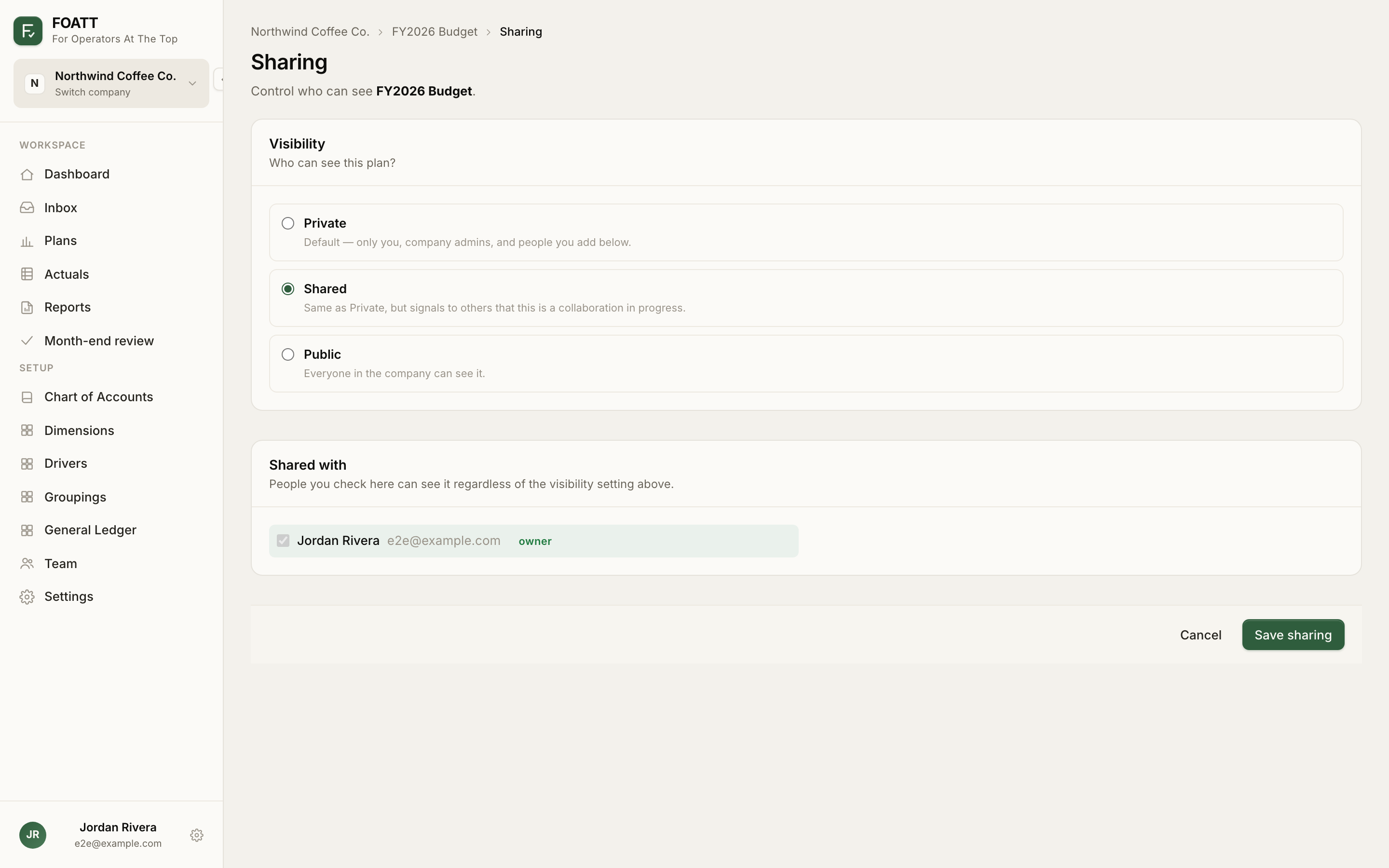
Click Share at the top of a plan (owners and company admins only) to open the Sharing page.
| Visibility | Who can see it |
|---|---|
| Private | Only you, company admins, and the people you check under Shared with |
| Shared | Same as Private, but signals to others that the plan is a collaboration in progress |
| Public | Everyone in the company |
Tick people under Shared with to grant access regardless of the visibility setting, then click Save sharing. The Share button shows the current setting, for example Share · public.
Whether someone can edit a plan is decided by their role, not by sharing.
Discussions
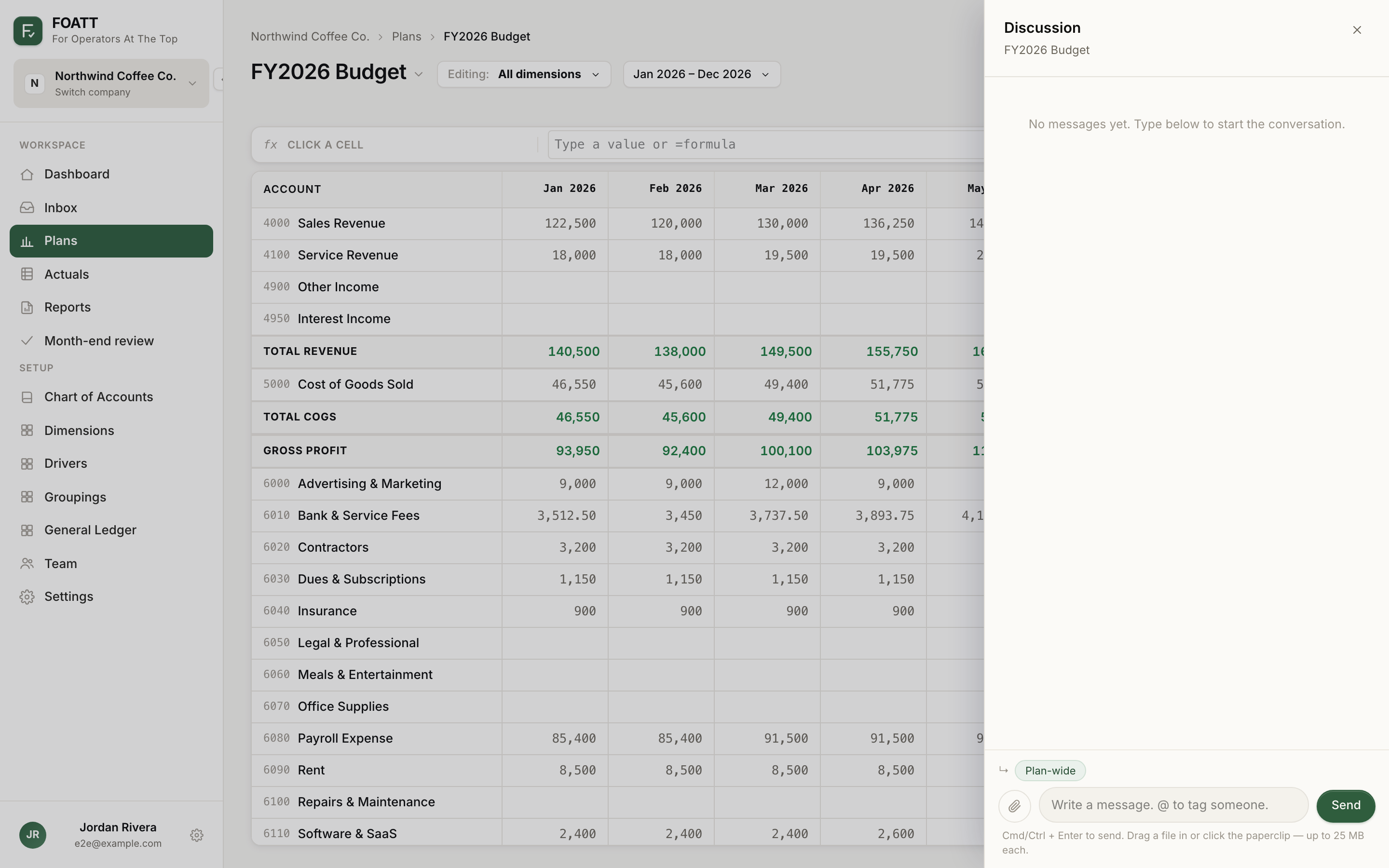
Click Discussion at the top of the plan for a thread about the whole plan, or right-click a cell and choose Discuss this cell to anchor a message to that cell. Select a range first to anchor to the range.
- Type
@to mention a teammate. They get a notification and an email. - Press
Cmd/Ctrl + Enterto send. Drag files in or use the paperclip to attach up to 25 MB each. - Click the anchor chip above the composer to switch between the highlighted range, the current cell, and plan-wide.
- Reply keeps the parent's anchor. Resolve marks a thread done; Reopen brings it back. You can delete your own messages.
The Discussion button shows the number of unresolved threads.