Team access is managed per company on the Team page under Setup. Company admins can invite people and change roles.
Send an invitation
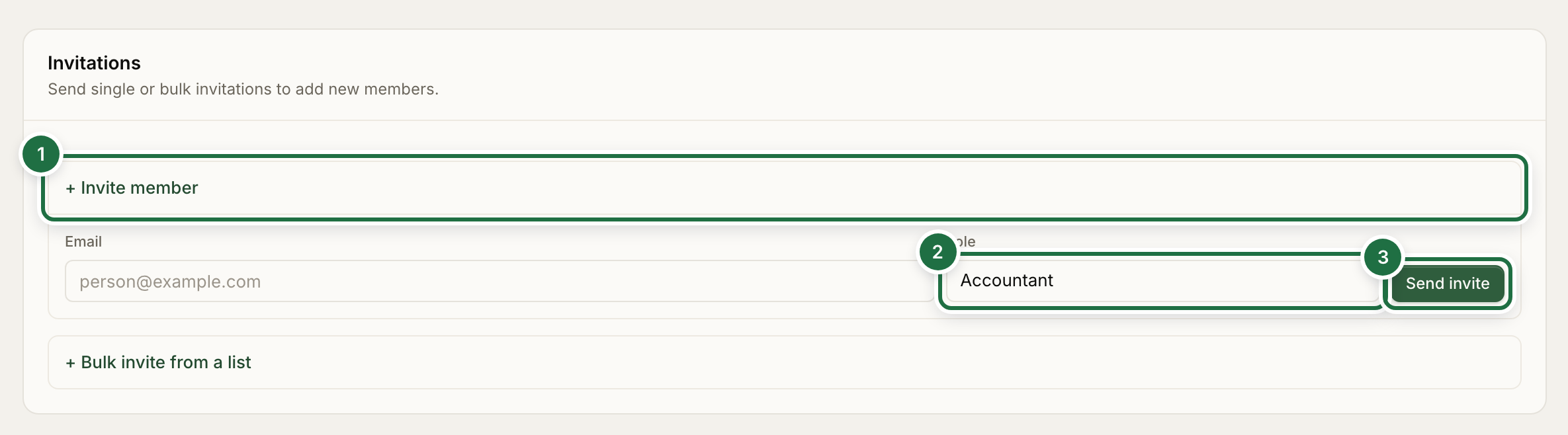
- Open Team and click + Invite member.
- Enter the person's email and pick a Role.
- Click Send invite.
The numbers in the screenshot match these steps.
They receive an email with an Accept invitation link that is valid for 7 days. If they already have a FOATT account, they sign in and are added; if not, they create an account and land in your company. Pending invitations are listed under the form with a Revoke button.
To add many people, use + Bulk invite from a list: paste emails one per line, or upload a CSV with email and role columns.
Roles
| Role | Can |
|---|---|
| Company member | View plans, actuals, reports, dimensions, the chart of accounts, and the ledger. Export reports |
| Company accountant | Everything a member can, plus create and edit plans, drivers, actuals, reports, dimensions, and accounts, and import the ledger |
| Company admin | Everything an accountant can, plus delete plans and reports, lock plans, roll back history, edit company settings, and manage members and roles |
You can only invite someone at or below your own role. An organization admin can also create companies, manage the master chart of accounts, and see billing.
Admins can create custom roles under Manage roles by ticking individual permissions, and a person can hold several roles at once.
Restrict someone to their department
Open a member from the Team page and click edit. Under Restrict to specific dimensions, tick the dimensions they may see. They will only see those dimensions in the plan grid's scope picker and never the cross-dimension roll-up. This is how a head of department gets a shared Planner role but only their own numbers.
Suspend or reinstate
From a member's page you can Suspend them, which removes their access without deleting their history, and Reinstate later. You can also trigger a password reset email from the same page.
Who can see a plan or report
Roles decide what someone can do. Whether they can see a specific plan or report is set on that item's Sharing page. See Share a plan and discuss it.