Actuals in FOATT come from general ledger transactions. Import them from a CSV export of any accounting system, then roll them up into monthly actuals per account.
If your books are in QuickBooks Desktop, use Import from QuickBooks Desktop instead. It reads the native export and builds the chart of accounts at the same time. QuickBooks Online and NetSuite users do not import at all: the sync pulls the ledger. See Connect QuickBooks Online.
Prepare the CSV
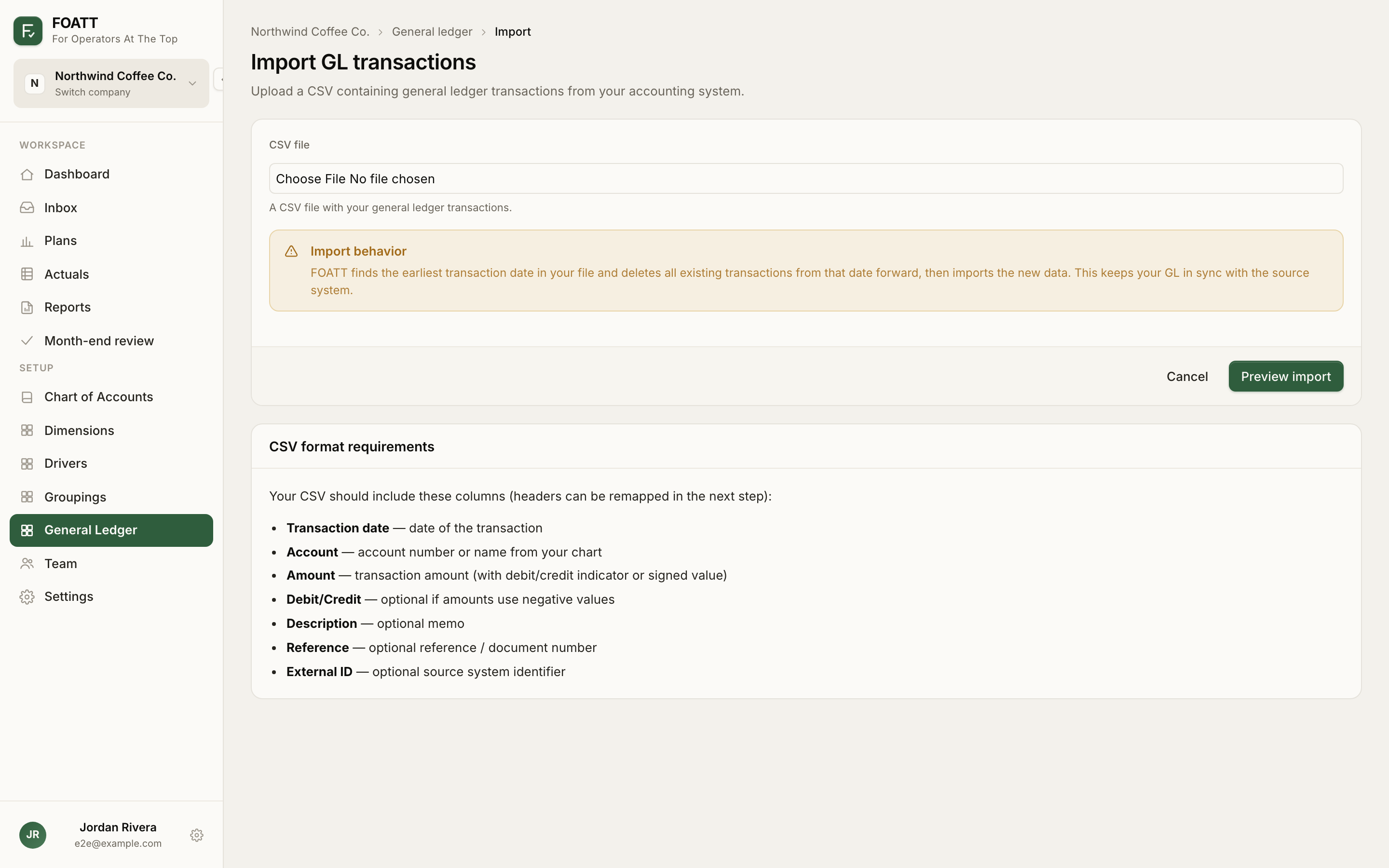
Export transactions from your system with one row per ledger line. Column headers can be named however you like, because you map them in the next step. Keep headers to letters, numbers, and spaces.
| Column | Required | Notes |
|---|---|---|
| Transaction date | Yes | MM/DD/YYYY or YYYY-MM-DD |
| Account | Yes | The account number from your chart. A value like 1010 · Checking works because the leading number is used |
| Amount | Yes, unless you have debit and credit columns | Signed amounts: positive is a debit, negative is a credit. Parentheses also mean negative |
| Debit amount and Credit amount | Alternative to Amount | Two columns, one filled per row |
| Debit/credit type | Optional | A column containing D/Debit or C/Credit when your amounts are all positive |
| Description | Optional | Memo text |
| Reference | Optional | Document or check number |
| External ID | Optional | The row's ID in the source system |
Account matching is by account number only, so make sure your chart of accounts is loaded first and the numbers agree.
Run the import
- Open General Ledger in the sidebar and click Import, or go straight to the Import GL transactions page.
- Choose the file and click Preview import.
- On the Map CSV columns step, match each of your headers to a FOATT field. Your mapping is remembered for next time.
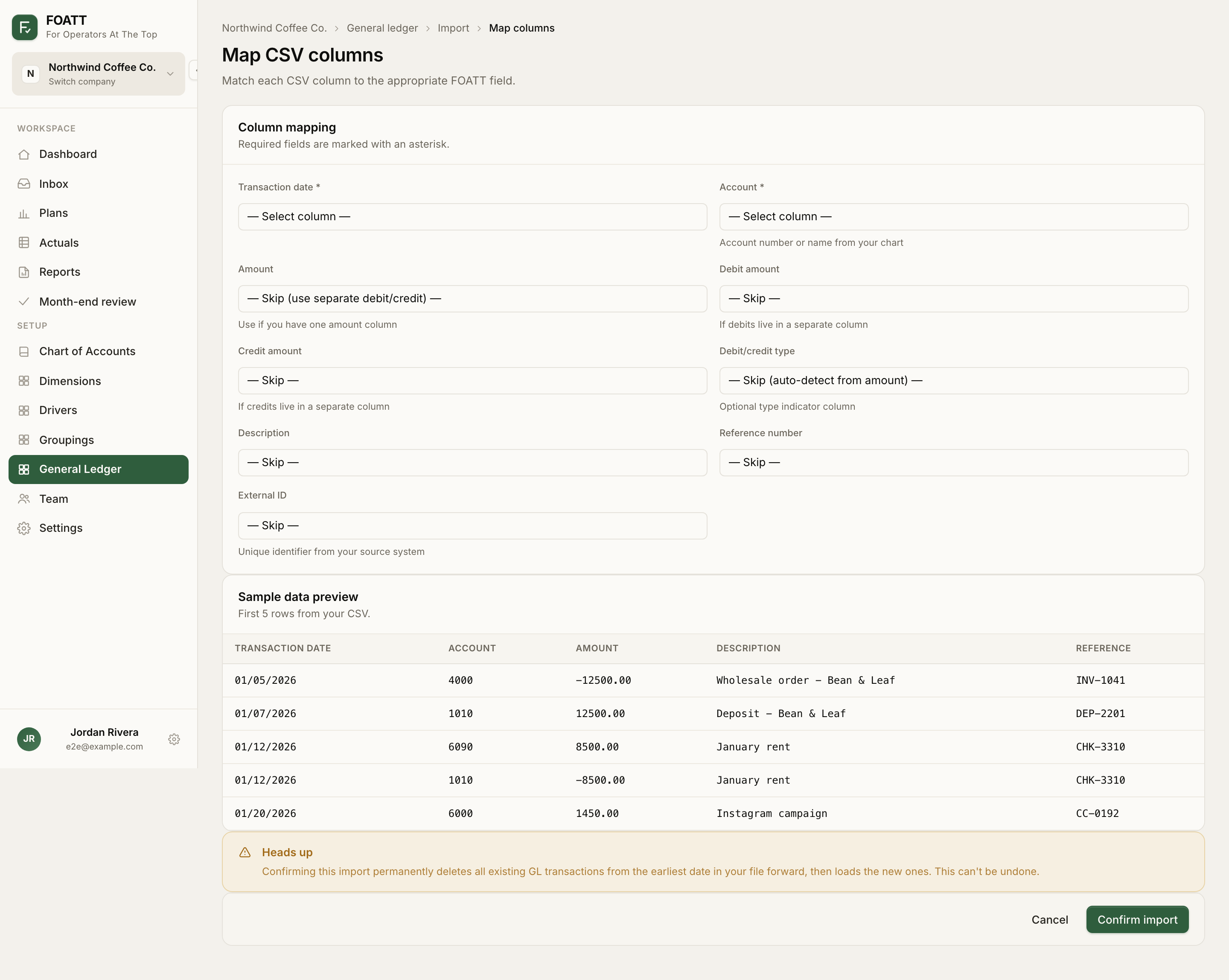
- Check the sample rows, then click Confirm import.
How re-imports work
The importer finds the earliest date in your file and replaces every transaction from that date forward, then loads the file. That keeps FOATT in step with your accounting system when you re-export a period after corrections. It also means a file covering only January will remove anything already imported for February onward, so always export from the earliest month you want to refresh through the latest month you have.
Missing accounts
Rows whose account number is not in your chart are skipped and listed on the Missing accounts page after the import. Give each one a name and account type and click Create accounts & re-import, then upload the same file again so the skipped rows come in.
Turn the ledger into actuals
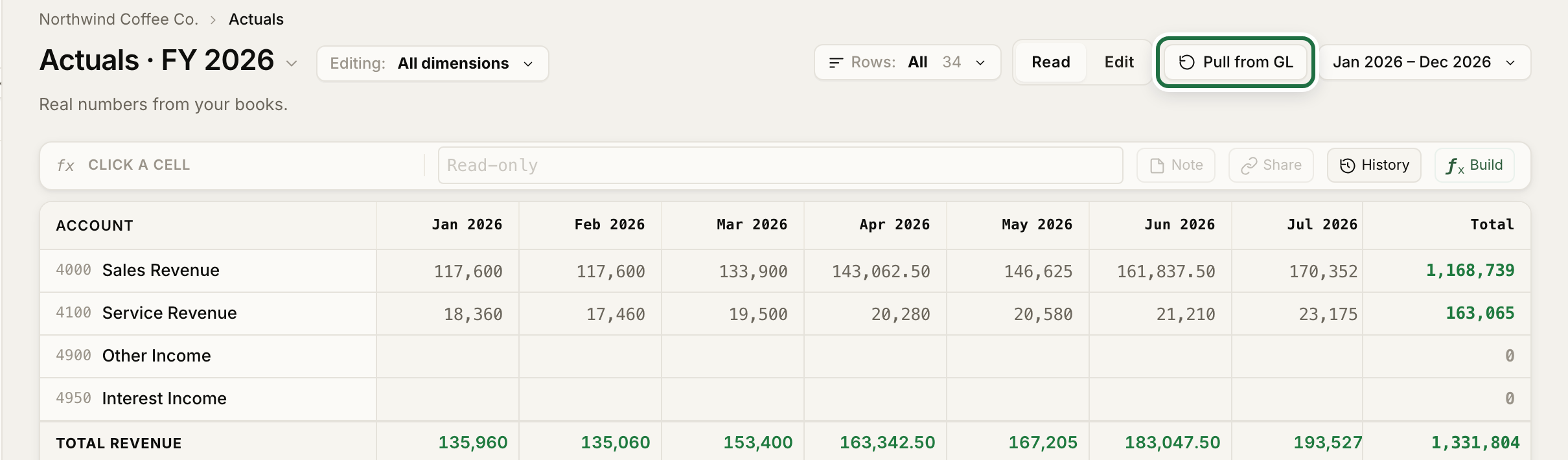
Open Actuals in the sidebar and click Pull from GL. FOATT sums the ledger by account and calendar month for the current fiscal year, flipping the sign on revenue, liability, and equity accounts so revenue and expenses both read as positive numbers. Any actuals you typed in by hand are kept.
If the import finishes with an error message but your transactions are visible under General Ledger, click Pull from GL on the Actuals page and carry on.
Import history
General Ledger → Batches lists every import with its status, date range, and counts. Click a batch to see the column mapping used and the transactions it loaded. There is no delete for a batch: to correct data, fix the export and import it again.