Your chart of accounts is the backbone of everything in FOATT: plan rows, actuals, and report lines are all accounts. Set it up before you import a ledger or build a plan.
Choose how to build it
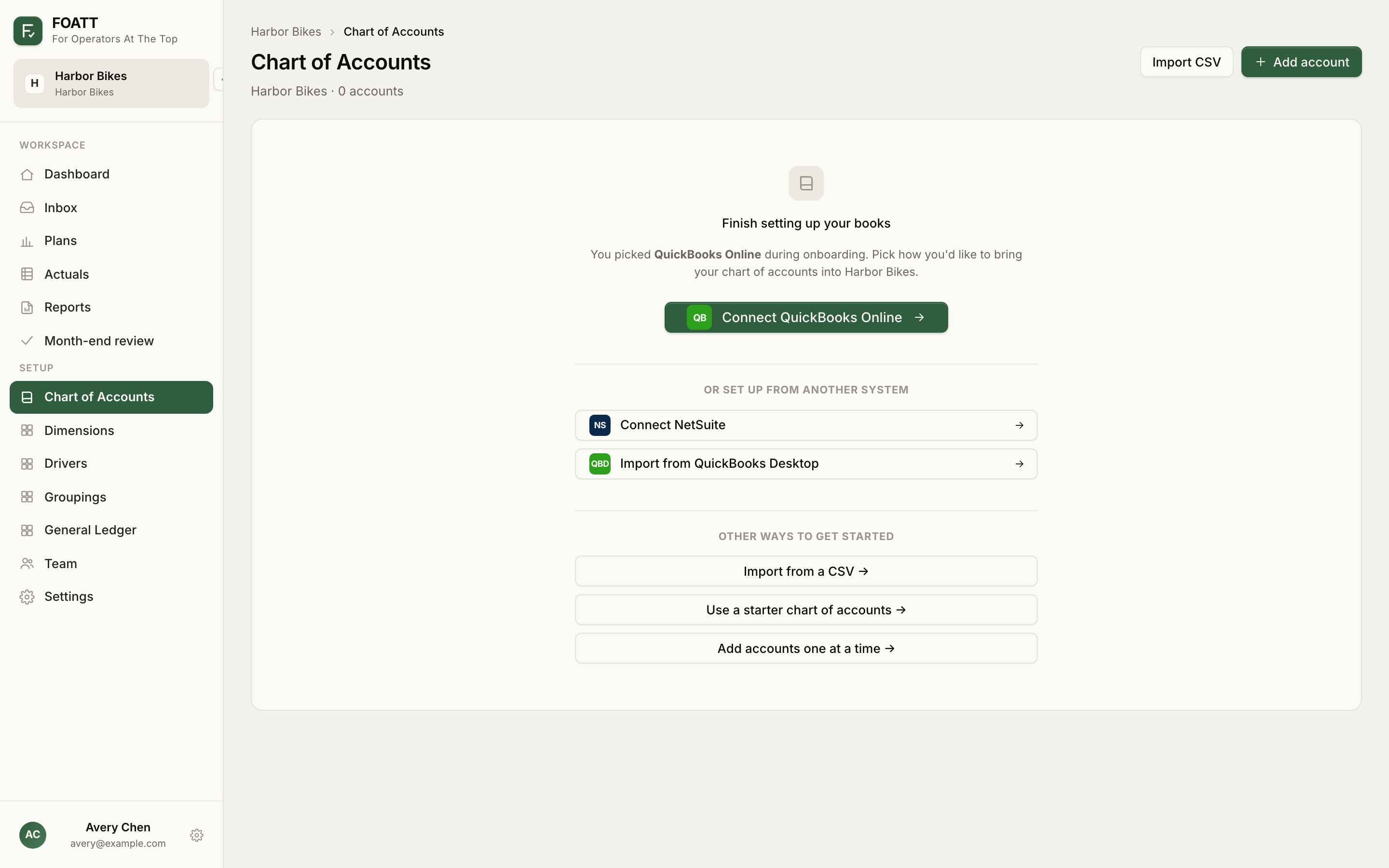
The Chart of Accounts page under Setup offers every route on its empty state:
| Route | Best when |
|---|---|
| Connect QuickBooks Online or NetSuite | Your books are there. The sync creates and maintains the chart. See Connect QuickBooks Online. |
| Import from QuickBooks Desktop | You can export a General Ledger report. One upload builds the chart and imports transactions. See Import from QuickBooks Desktop. |
| Import from a CSV | You have an account list from any other system. |
| Use a starter chart of accounts | You are exploring, or you run a simple business and would rather edit than import. |
| Add accounts one at a time | You only have a handful. |
Import a CSV
- Click Import CSV and download the sample template.
- Fill in one row per account. Required columns are
account_number,name, andaccount_type. Optional columns areparent_account_number,description, andactive. - Use one of the five categories for
account_type: asset, liability, equity, revenue, or expense. You can refine the specific type after import. - List parent accounts before their children.
- Upload the file and click Preview import. Review each row, then confirm.
Duplicate account numbers are skipped, so you can re-run an import safely.
The starter chart
The starter chart has 41 accounts in the usual small-business shape: cash and receivables, payables and credit cards, equity, sales and service revenue, cost of goods sold, sixteen operating expense accounts from Advertising to Utilities, and interest and depreciation. Load it, then rename, deactivate, or add accounts to match your books. It only loads into an empty chart.
Add or edit an account
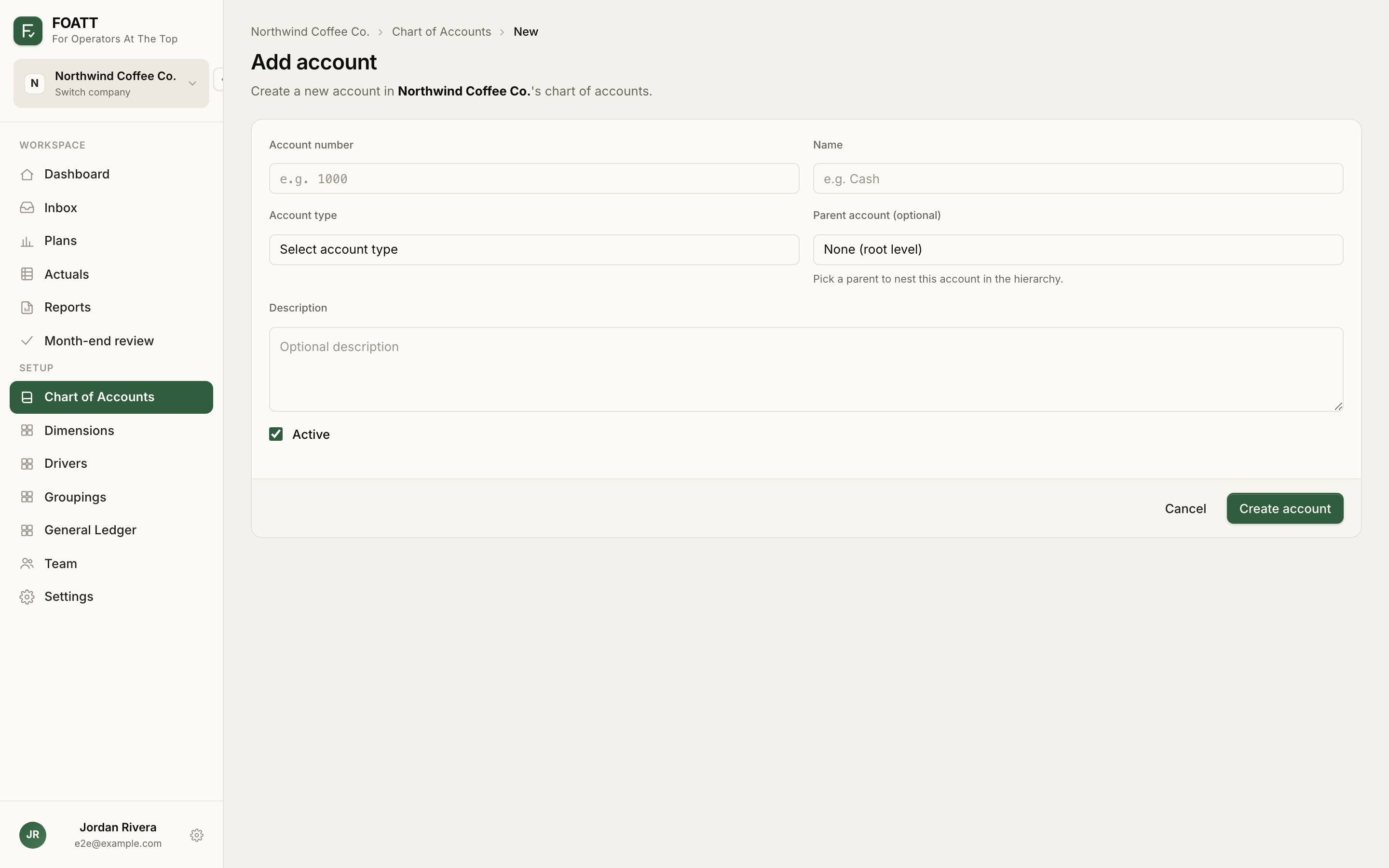
Click Add account or the pencil on any row. Every account needs an Account number, a Name, and an Account type. Choose a Parent account to nest it; the grid and reports roll children into their parent. Untick Active to hide an account without losing history.
Account types
Each account has one of fifteen types, grouped into five categories. The type decides where the account appears on the plan grid and which subtotal it feeds:
| Category | Types |
|---|---|
| Asset | Bank, Accounts Receivable, Other Current Asset, Fixed Asset, Other Asset |
| Liability | Accounts Payable, Credit Card, Other Current Liability, Long Term Liability |
| Equity | Equity |
| Revenue | Income, Other Income |
| Expense | Cost of Goods Sold, Expense, Other Expense |
Income and other-income accounts feed Total Revenue, cost-of-goods-sold feeds Total COGS, expense feeds Total Operating Expenses, and other-expense feeds Total Other Expenses. Getting the type right is what makes Gross Profit and Net Income correct.
Archiving
Deleting an account archives it: it disappears from lists but its history in plans, actuals, and the ledger is preserved. An account with child accounts cannot be archived until the children are moved.
Several companies
When your organization has more than one company, an Org mapping column appears. Map each company account to the organization's master chart so consolidated reports can add companies together. Auto-match proposes mappings by account number and name. See Consolidate across companies.
Merging accounts
If a sync mapped to the wrong account, or your chart has two accounts that should be one, open the account, click Merge into…, and pick the account of the same type it should fold into. The page lists what will move: GL transactions, actuals, plan values, opening balances, review notes, and sub-accounts. Where the target already has a value for the same period, the target's value is kept and the page says how many would be dropped. The accounting-system link moves to the target when the target has none. The merged account is retired, not deleted, and its number stays reserved, so update any formulas that referenced it.