One QuickBooks Desktop export gives FOATT everything it needs: the chart of accounts with its hierarchy and types, and every transaction for the period. No template to fill out.
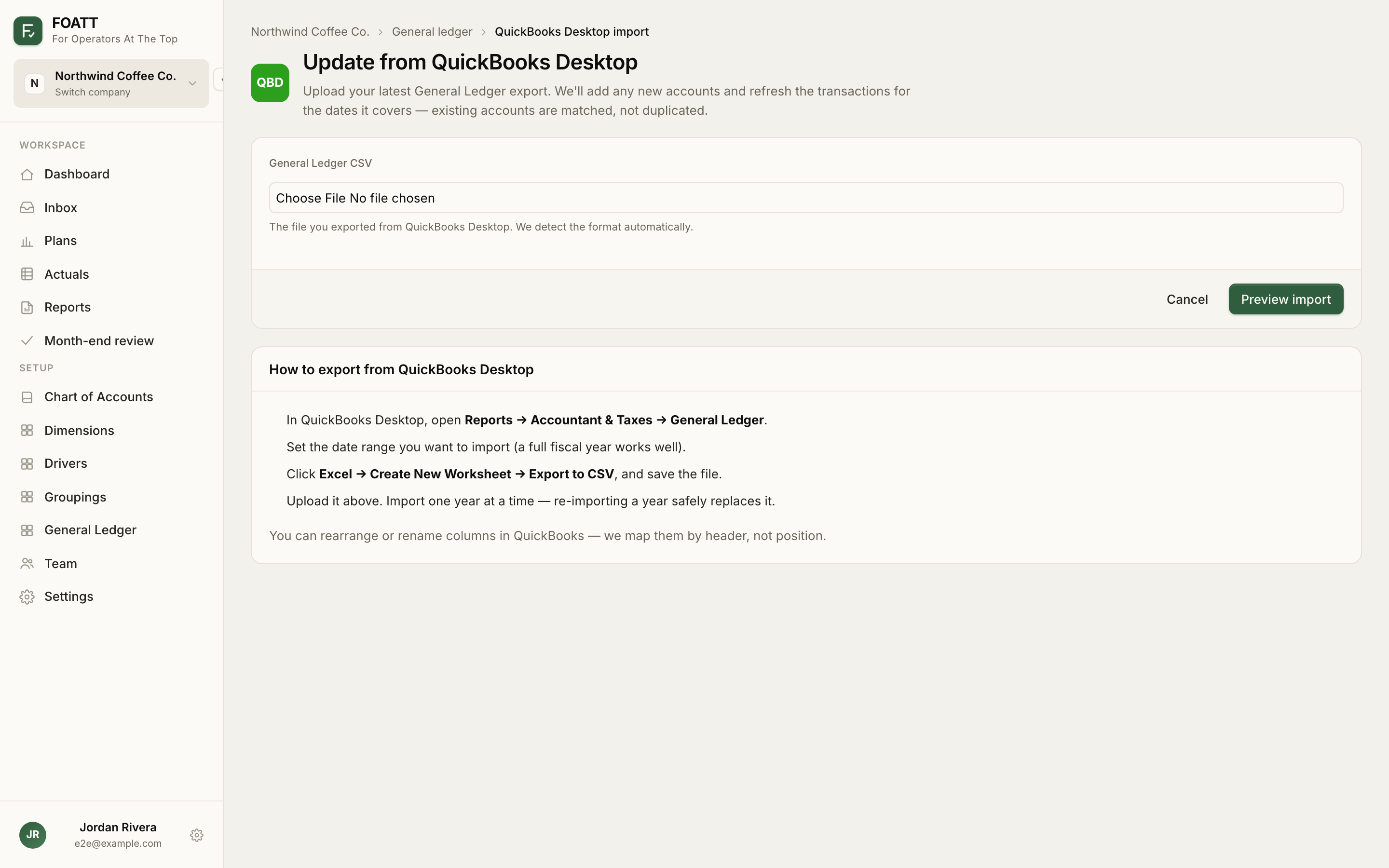
Export from QuickBooks Desktop
- Open Reports → Accountant & Taxes → General Ledger.
- Set the date range. A full fiscal year works well; import one year at a time.
- Click Excel → Create New Worksheet → Export to CSV and save the file.
You can rearrange or rename columns in QuickBooks. FOATT maps by header, so the export just needs the standard General Ledger columns: Trans #, Type, Date, Account, Split, and Amount. Num, Name, Memo, and Account Type are used when present.
Upload and review
- Go to Chart of Accounts or General Ledger and choose Import from QuickBooks Desktop. On later imports the button reads Update from QuickBooks Desktop.
- Choose the file and click Preview import. Nothing is saved yet.
- The review page tells you whether debits and credits balance. If they are off, the export is usually filtered or partial; check the date range.
- Review the Chart of accounts list. It is built from the report's grouping with the same parent and child structure and the account types QuickBooks reported. Accounts without a number in QuickBooks get a suggested number in the right range; edit any number before confirming.
- Accounts that appear in the report but had no activity are left out by default. Expand unused accounts and tick any you want anyway.
- Click Confirm import.
The import runs in the background and the batch page updates until it finishes. Actuals are rebuilt for the imported months automatically, with manual entries preserved.
Re-importing
Re-importing a period is safe. Existing accounts are matched, not duplicated, and transactions inside the file's date range are replaced. Transactions outside that range are untouched, so importing 2025 after 2026 will not disturb 2026.
Classes and departments
QuickBooks Desktop classes are kept with each transaction for reference but are not turned into dimensions. To plan by department or location, set up dimensions yourself; see Set up dimensions.