Settings
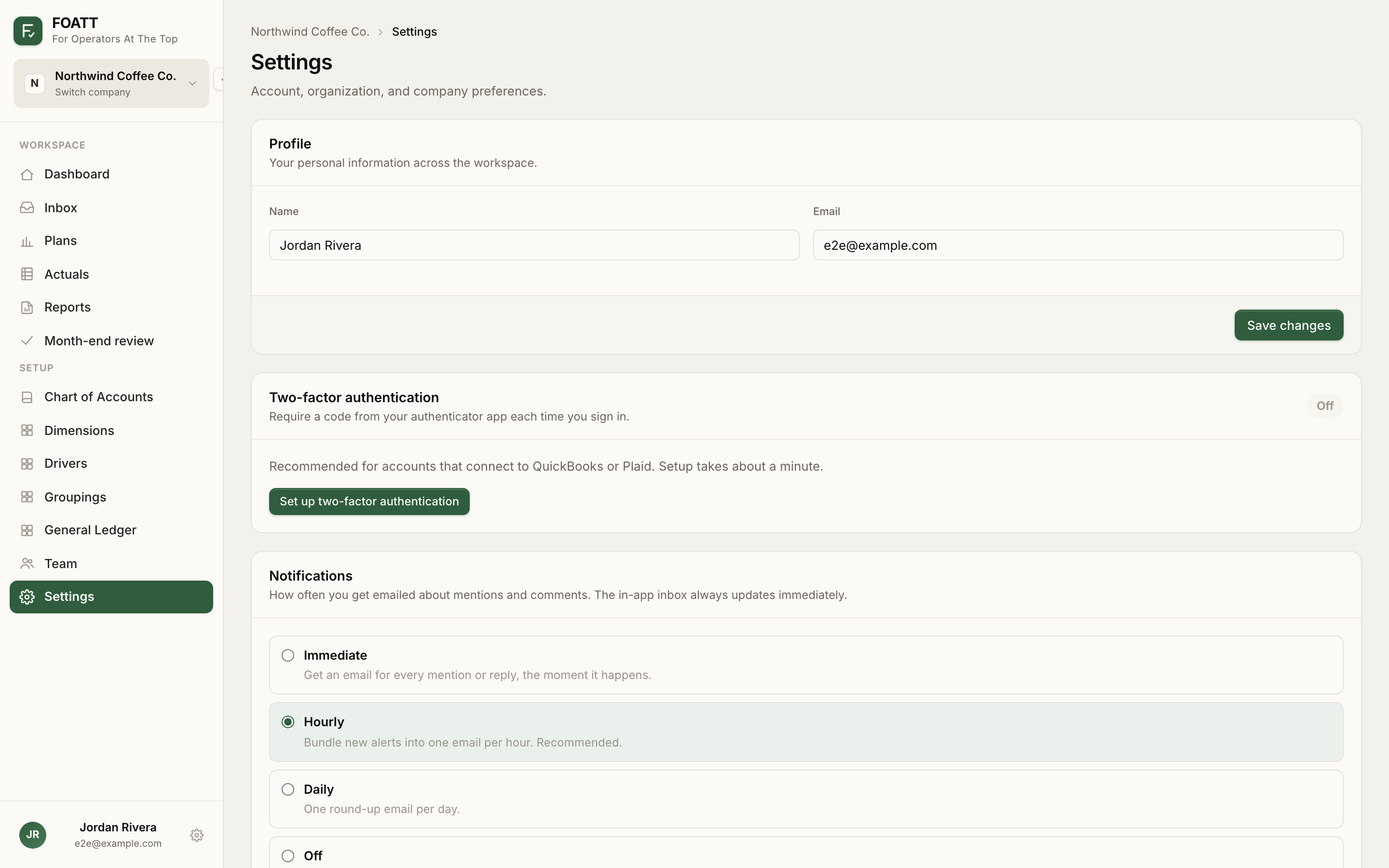
Settings in the sidebar collects:
- Profile — your name and email.
- Two-factor authentication — recommended for accounts connected to QuickBooks or a bank.
- Notifications — how often you are emailed about mentions and replies: immediately, hourly, daily, or never. The in-app inbox always updates at once.
- Organization — links to manage the organization and billing.
- Company — the current company's name, Timezone, and Fiscal year starts.
- Integrations — accounting and AI connections for this company.
Fiscal year
The fiscal year start month lives on the organization and applies to every company. A company can override it under Settings when its year differs. The setting drives the default window when you create a plan and the year picker on the Actuals page. Reports always work in calendar months regardless.
Organizations and companies
An organization is the umbrella: it owns billing, the master chart of accounts, and the people. A company is one set of books with its own chart of accounts, ledger, plans, and reports. Most customers have one of each. Multi-entity groups have one organization and several companies, which lets reports consolidate across them.
Add a company
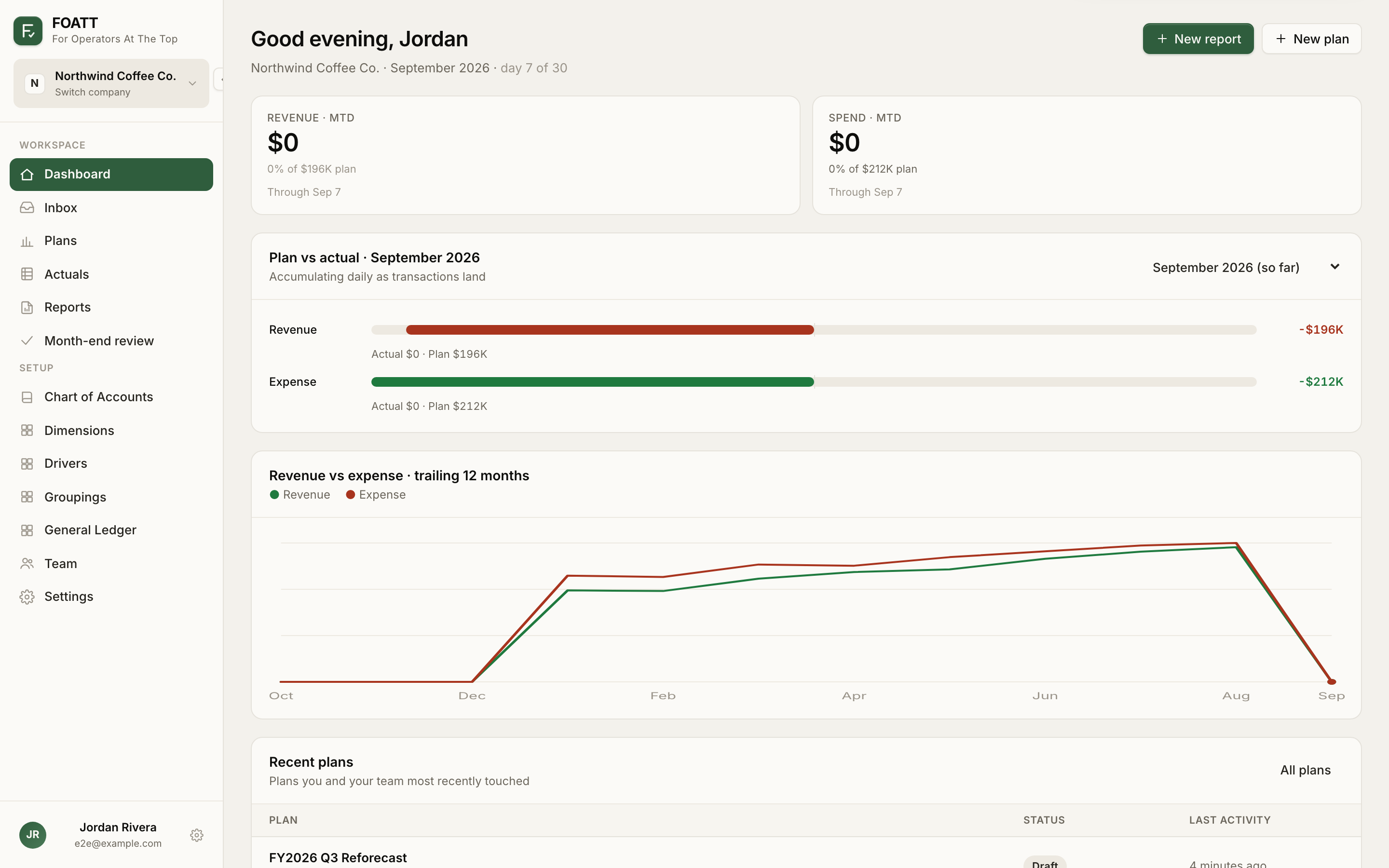
Open Settings → Manage organization → Add company, or go to the Companies page and click New company. Enter a name and time zone and click Create company. If your organization is still named after your first company, you are asked whether to give the parent a name of its own.
You become the new company's admin and are switched into it, landing on its empty Chart of Accounts page. The number of companies per organization depends on your plan: Starter 1, Growth 3, Pro 10, Enterprise unlimited.
Switch companies
The company card at the top of the sidebar shows which company you are in. The Companies page lists every workspace you belong to with a Switch to button. Plans, actuals, and reports always belong to the company you are switched into.